
OptiSafari guides
Step-by-step guides for the fog map, check-ins, offline use and more.
8 guides · Updated 2026-11-17
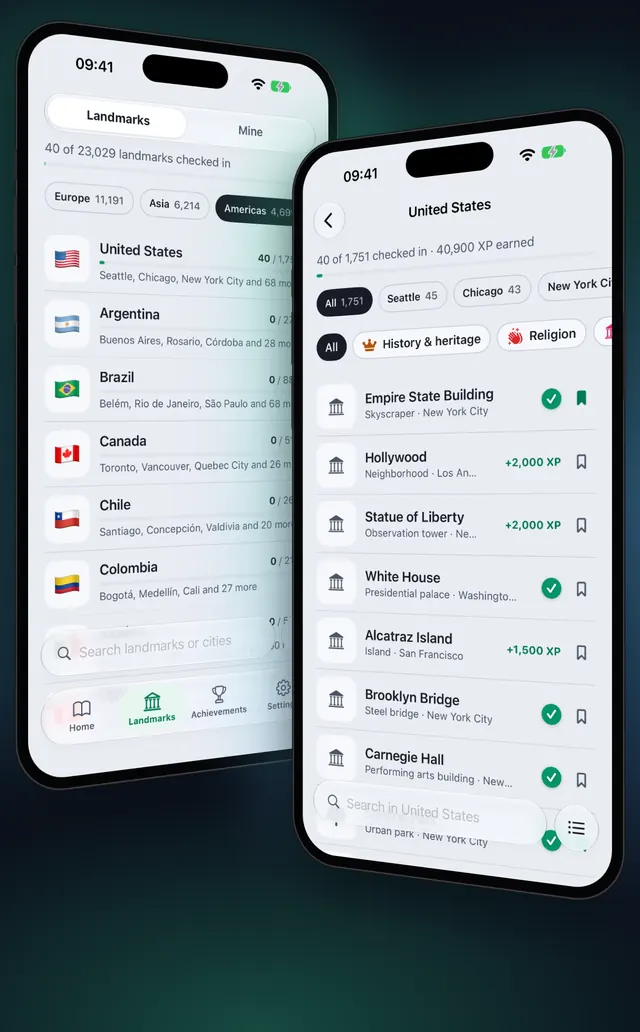
- LandmarksPlaces visited mapSee the places you have been on iPhone: streets you walked stay cleared on your map, and landmarks you check in at are listed by country and city.Updated November 17, 2026
- Fog mapFog not clearingFog of war not clearing on your walking map? The exact rules: a walk running, Location While Using, GPS within 50 m and under 130 km/h.Updated November 17, 2026
- iPhone DuoOptiSafari on iPhone DuoOptiSafari on iPhone Duo: unfold it and hold it sideways for two columns and a full-screen walk map. Upright or folded, it looks like any iPhone.Updated November 17, 2026
- Check inCheck in at landmarksCheck in at famous landmarks as you walk: how close you need to be, how much XP each place gives, and how to find landmarks near you.Updated November 13, 2026
- Fog mapFog-of-war walking mapA fog-of-war walking map hides the world until you walk it. See how OptiSafari clears the fog, what counts, and how to start your first walk.Updated November 7, 2026
- Apple WatchRecord a walk on Apple WatchRecord walks on Apple Watch with your iPhone left in your pocket: start a walk, follow the compass to the next landmark and check in from your wrist.Updated November 7, 2026
- Share my mapShare your explored mapSend your explored map to a friend: phone to phone with a QR code, or as an encrypted file plus a key. See what is shared and what stays private.Updated November 7, 2026
- Region dataWalk offline with city mapsDownload a country's landmarks and city street maps to your iPhone before a trip, then walk and check in without a connection. Includes sizes and deleting.Updated November 7, 2026