Region data
How to download a country's landmarks and city maps to walk offline
Signal drops and roaming costs money. Download a country's landmarks and the street maps of the cities you will visit, and keep exploring without a connection.
Updated November 7, 2026 · Free on the App Store · iPhone and Apple Watch, iOS 17+
Why download before you go
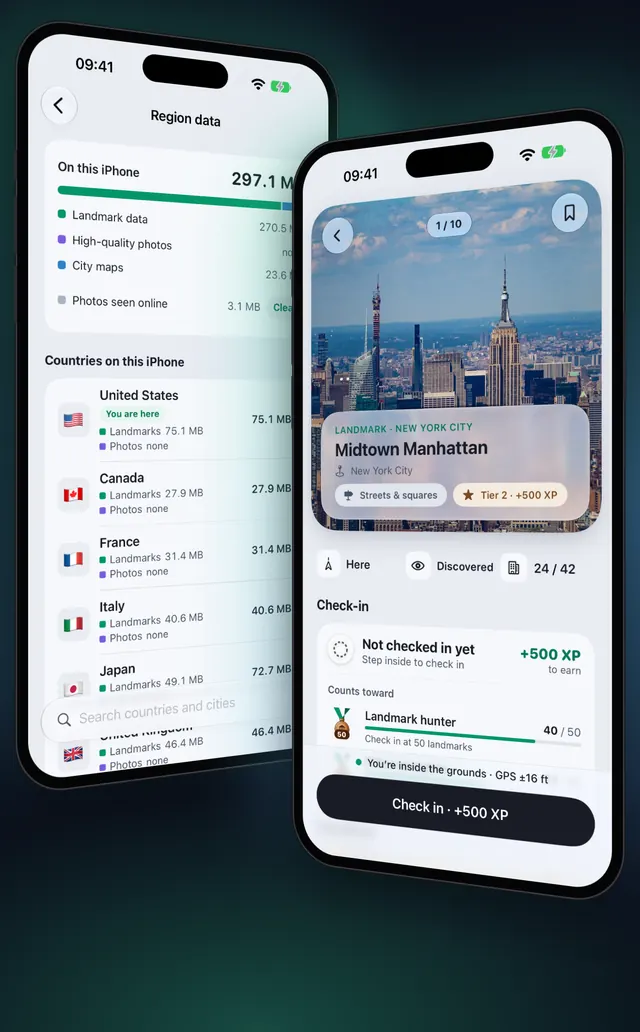
OptiSafari works without a connection once the data is on your iPhone. Landmarks come one country at a time, and no country is built into the app. A country that is not on your iPhone shows no landmark pins, no landmark pages and no check-in, although your counts and XP stay. City street maps are separate downloads, so the streets show without a signal.
Downloading is free for landmarks and city maps. Nothing about you is sent to download them: it is public map and place data, and your progress is never touched.
What you can download
| Part | What it holds | Size |
|---|---|---|
| Landmarks and regions | The whole country: its landmarks, small pin photos, provinces and wards | 2 to 22 MB per country |
| City maps | The streets of a city for walking without a connection, in the Outdoor, Street and Dark styles | Shown beside each city |
| High-quality photos | Every place's gallery, sharp and offline. Part of Premium | Shown before you download |
Every size is shown before you download, and a download that would not fit your free space is refused with a Not enough space message.
Download a country and a city map, step by step
- Connect to Wi-Fi. Photos always wait for Wi-Fi, and a large download is easier there.
- Tap the Settings tab, then tap Region data under Offline.
- Find the country under Download before a trip, or type its name or a city in Search countries and cities.
- Tap Get next to the country and choose Landmarks only.
- Watch the floating capsule at the bottom that says Downloading. When it finishes, the country moves up to Countries on this iPhone.
- Tap the country to open its page, then tap the City maps card (Street maps for offline walking).
- Tap the download button with the size beside each city you will walk in. The button at the top right downloads every city map of the country.
- Check the page: each city you downloaded says it is on this iPhone, and the page shows the space it uses.
With Premium, Get also offers Everything and High-quality photos. Without it those items show a lock and open the Premium page, and a place's photos load when you have a connection.
Walk offline
Start a walk as usual: How a fog-of-war walking map works. With the country on your iPhone, the fog, your explored ground, landmark discovery and check-ins all work without a signal. Inside a city you downloaded, the map draws its streets from the city map on your iPhone.
Let OptiSafari download for you
Under When you arrive in a new country, choose what happens when you arrive somewhere new:
| Option | What it does |
|---|---|
| Download | Downloads the country's landmarks and regions for you (the default). Over mobile data it asks first |
| Ask me | Shows a card to confirm the download, or to wait for Wi-Fi |
| Don't | Does nothing. You download from Region data yourself |
Use mobile data lets landmarks and regions download over mobile data. Photos always wait for Wi-Fi. A country you have already downloaded also updates by itself on an unmetered network, or shows an update to tap in Region data.
Free up space or delete a country
- Open Settings, then Region data.
- Tap the country under Countries on this iPhone to open its page.
- Tap the red line at the bottom that says Delete followed by the country's name and from this iPhone, then confirm the deletion.
You can also delete a single city map from the ••• menu on its row. Its landmarks, photos and city maps come back when you download them again, and your progress stays: XP, medals, check-ins and everything you explored. Photos seen online is a cache that you empty with Clear.
Tips
- Download the city maps you will actually walk in. Pick a few cities rather than a whole country to save space.
- Download the country before you land. The landmark pack is small, and it is what makes landmarks and check-in appear there.
- Keep an eye on storage. The card at the top of Region data splits the space between landmark data, photos, city maps and photos seen online.
- Share what you found. Once you are back, you can hand a friend your map: Share your explored map.

OptiSafari — Places Visited, Travel Tracker
Free · No account · Works offline
Frequently asked questions
How much space does it take?
A country's landmarks and regions take 2 to 22 MB. City maps and photos show their size beside each download, so you see the cost before you tap.
Does deleting a country erase my progress?
No. Your explored ground, check-ins, XP and medals stay. Deleting only removes the landmarks, photos and city maps from your iPhone, and they come back when you download them again.
What works without a connection?
Walking and clearing the fog, discovering and checking in at landmarks of a downloaded country, and streets inside a downloaded city. Street maps of a city you have not downloaded load from the internet.
What still needs a connection?
Downloading itself, map weather (a Premium feature), and creating or opening a map link. Photos you have not downloaded load online when you open them.
Can I download every country at once?
Each country is downloaded from its own row in Region data. Within a country, the button at the top right of City maps downloads every city map.