Apple Watch
How to record a walk on Apple Watch and check in from your wrist
Leave the iPhone in your pocket. Your watch records the walk with its own GPS, points you to the next landmark and checks you in with one tap.
Updated November 7, 2026 · Free on the App Store · iPhone and Apple Watch, iOS 17+
Why record a walk on your wrist
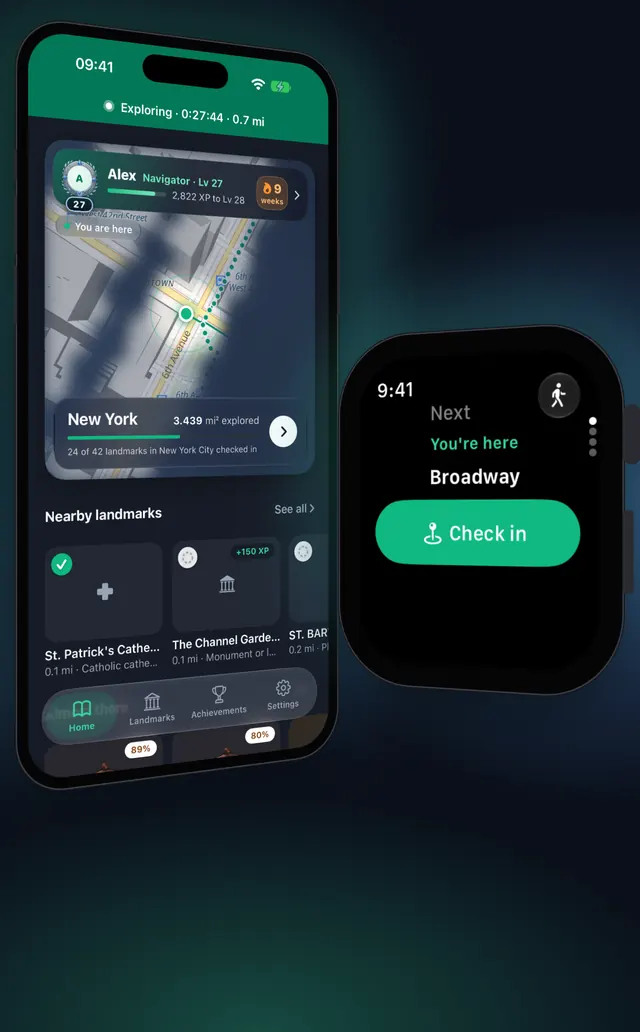
Exploring is easier when the phone stays in your pocket. With an Apple Watch that has OptiSafari on it, the watch records the walk with its own GPS, shows how far the next landmark is and which way to go, and lets you check in with a tap. Your iPhone turns its own GPS off and still shows the walk, so the fog on your map keeps clearing and your check-ins count on both devices.
OptiSafari needs watchOS 10 on the watch and iOS 17 on the iPhone. Nothing from the watch is saved to Apple Health: the app runs a walking workout only so the watch keeps GPS on during the walk.
What you see on the watch
Outside a walk the watch has four pages, which you move between with the Digital Crown:
| Page | What it shows |
|---|---|
| Next | A dial that points to the next landmark, with its name and distance. In range, it becomes You're here with a Check in button. The walk button is at the top right |
| Nearby | The closest landmarks with direction and distance. Tap one to make it the target on Next |
| Today | Walked, Moving time, New area and Wards opened today |
| Level | Your level, the XP left to the next one, and your latest badge |
During a walk the watch shows three pages side by side, like Workout: the controls with End walk on the left, your time, distance and check-ins in the middle, and the next landmark on the right.
Set up and record a walk, step by step
- On your iPhone, open the Watch app, go to My Watch, scroll to Available Apps and tap Install next to OptiSafari.
- In OptiSafari on the iPhone, tap Settings, then Apple Watch. The Status card should show Paired and Reachable now.
- Under Record walks on, choose Apple Watch when available. It is the recommended setting and the default.
- To start from the iPhone, tap Start exploring on Home. The watch starts its own walk. Or start from the watch: open OptiSafari, tap the walk button at the top right of Next, then tap Start walk.
- The first time, allow location for OptiSafari on the watch and allow it to record workouts in Health, so GPS stays on with the screen down.
- Put your iPhone in your pocket and walk. Swipe to the middle page to see your time, Walked, New area and the number of check-ins.
- Swipe to the right page, Next, and follow the dial to the landmark. When you are inside its grounds the page shows You're here.
- Tap Check in. The watch shows Checking in…, then the answer with the XP, and taps your wrist.
- To finish, swipe to the left page, tap End walk, and tap End walk again at End this walk?.
- The watch shows Walk saved with Time, Walked, New area and Check-ins. Once the iPhone has merged the walk, it adds Added to your map.
Check-in on the watch follows the same rules as on the iPhone: you must be inside the landmark's grounds and the GPS fix must be accurate to 50 m or better. See Check in at landmarks.
Settings that matter
You find them in Settings › Apple Watch on the iPhone.
| Setting | Options | What it does |
|---|---|---|
| Record walks on | Apple Watch when available, Always iPhone | With Always iPhone the watch shows the walk and checks in but does not record |
| When the watch battery falls below | Off, 10%, 20% (default), 30% | At that level the watch hands over according to your choice below |
| Battery choice | Switch to iPhone (default), Ask me, Keep recording on the watch | Ask me asks on the watch: Switch to iPhone, End walk or Keep going. At about 5% the watch saves the walk and stops its GPS, so nothing is lost |
| Save watch battery | On or off | The watch records fewer GPS points |
During a walk you can switch by hand with Record on iPhone or Record on this watch on the watch's left page.
Tips
- Wear the watch. It records only while you wear it, and it runs one workout at a time: starting another workout on the watch stops the walk there.
- Watch the handoff. You get a notification each time recording moves between the watch and the iPhone, for example when the watch battery runs low.
- Walk without the iPhone. If the iPhone is out of reach, the watch keeps recording and hands the walk over when they meet. The watch shows Walk saved and your iPhone adds the ground to your map the next time it is nearby.
- Learn how the fog works. The map on your iPhone clears from the watch's positions the same way: How a fog-of-war walking map works.

OptiSafari — Places Visited, Travel Tracker
Free · No account · Works offline
Frequently asked questions
Do I need my iPhone with me?
Not to record. The watch records with its own GPS and hands the walk over to the iPhone when they are in reach again. For landmarks and check-in on the watch without the iPhone nearby, the watch needs the landmark packs your iPhone sends it, which are part of Premium. Without Premium the watch still records the walk and your iPhone adds the new ground later.
Is anything saved to Apple Health?
No. OptiSafari runs a walking workout so the watch keeps GPS on, and nothing from it is saved to Health. If you allow it, the iPhone app reads your heart rate from Health to show how hard a walk was, and it never writes to Health.
Why does the watch say the iPhone is recording?
The iPhone records when you set Always iPhone, when you tap Record on iPhone on the watch, or when the watch battery falls below your limit with the iPhone nearby. The watch's GPS is off then, and the watch still shows the walk and checks in.
The watch does not show my walk. What should I check?
In Settings › Apple Watch, make sure the Status card shows the watch as paired, OptiSafari as installed on it, and Reachable now. If it is not reachable, bring the watch near the iPhone with Bluetooth on. A walk recorded on the watch waits there and syncs when they meet.
What can the watch not do?
The watch shows no map and no fog: the map is on your iPhone. It also cannot record while you are not wearing it.