Check in
How to check in at landmarks and earn XP while you walk
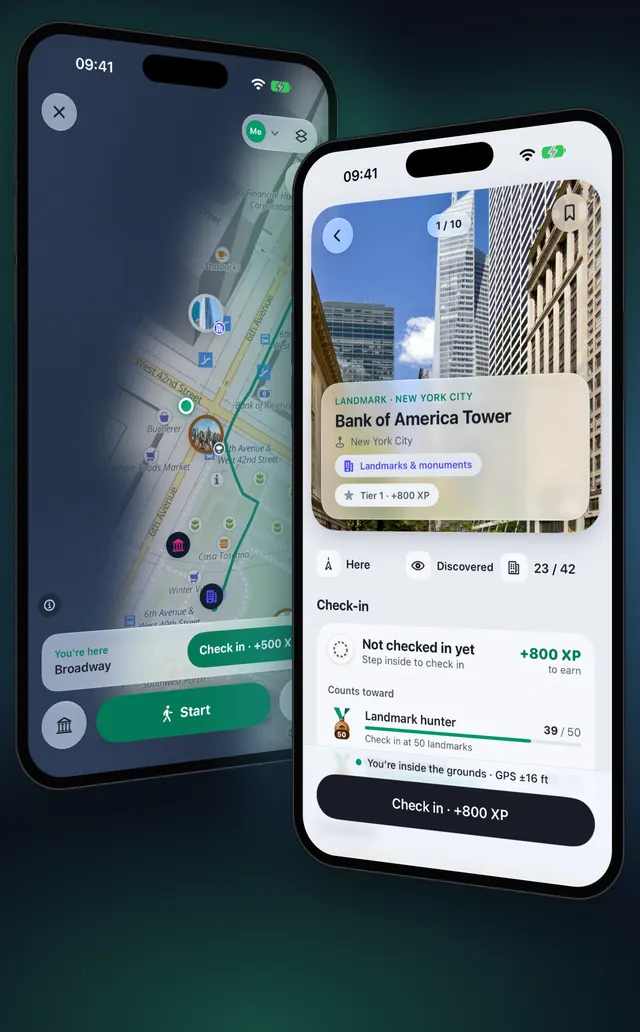
Walk to a landmark, step inside its grounds and tap Check in. The more famous the place, the more XP it gives, and each landmark counts once.
Updated November 13, 2026 · Free on the App Store · iPhone and Apple Watch, iOS 17+
Why check in at landmarks
Walking past a landmark only discovers it. Checking in is the deliberate part: you have to be there. OptiSafari knows 23,000+ landmarks in 49 countries and 1,400+ cities. Each check-in earns XP, fills in the city you are in and counts toward your medals.
Every place has a tier, shown by the ring on its pin, and the tier sets the XP:
| Tier | Ring on the pin | XP for the check-in |
|---|---|---|
| Legendary: World Heritage Sites and the most famous places | gold, with a soft glow | 1,500 to 2,000 |
| Tier 1: well-known landmarks and listed heritage | silver | 500 to 1,000 |
| Tier 2: other landmarks, parks, squares and markets | bronze | 200 to 500 |
| Discovery spot: cafés, food places and small sights | no ring | 50 to 150 |
The Eiffel Tower gives 2,000 XP, Tokyo Skytree 1,000 and a neighbourhood shrine about 200. Cafés and food places give XP for the first three check-ins of a day. Each place can be checked in once.
What you need before the button works
- Location allowed. Check-in uses your current position. The first Start exploring asks for location.
- Inside the landmark's grounds. Each landmark has its own radius. A small monument needs you close; a park or an old quarter is bigger. Until you are inside, the page says Enter the grounds to check in and shows how far you are from check-in range.
- A good GPS fix. The position must be accurate to 50 m or better. With a weaker fix the page says Waiting for a better GPS fix.
- The country on your iPhone. Landmarks come one country at a time. A country that is not downloaded shows no landmark pins, pages or check-in. By default OptiSafari downloads a country when you arrive; see Walk offline with city maps.
Check in at a landmark, step by step
- On Home, tap Start exploring. The map opens and your walk begins.
- Tap the building button at the bottom left of the map (Places around you) to open the row of places near you, on the Nearby tab.
- Swipe the cards until you find the landmark you want. Each card shows the distance and the walking time.
- Tap the card to open the landmark page, where Not checked in yet shows the XP to earn.
- Tap Focus on the landmark page to make it your target, then walk there. The map draws a line from you to it.
- Step inside the grounds. The hint on the landmark page changes to "You're inside the grounds", and a card with You're here appears on the map.
- Tap Check in on the card (it reads Check in followed by the XP) or on the landmark page.
- The page shows Checked in with the time, the XP you earned, and the medals the check-in counts toward.
You can also check in without opening the app. When you enter a landmark's range, OptiSafari can send a notification with a Check in action, on the lock screen or on your Apple Watch. Notifications need to be on in Settings › Notifications.
Find landmarks and plan a visit
- Browse by place. Countries and cities, with what you have checked in: A map of the places you have been.
- Pin up to three targets. Focus puts a landmark on your map with a line from you to it. A landmark leaves your focus by itself once you check in. A fourth one shows Three on your map already. Remove one first.
- Save places you want to see. Tap the bookmark on a landmark page (Save to a list) to make it one of your own places and put it in Favorites, Want to go or a list of your own. Find them in the Landmarks tab under Mine. Check-in always stays with the landmark. Free keeps three lists of your own; Premium makes the number unlimited.
Tips
- Turn notifications on. With a walk running and the phone in your pocket, the range notification tells you the moment you can check in.
- Wait for the GPS. If the page says Waiting for a better GPS fix, stay in the open for a moment and it clears.
- Check the XP before you choose. The card and the button show it, so you can walk to the 2,000 XP landmark first.
- Let your walk do the rest. Your route and new ground are recorded while you go: How a fog-of-war walking map works.
- Check in from your wrist. The watch offers Check in when you are in range: Record a walk on Apple Watch.

OptiSafari — Places Visited, Travel Tracker
Free · No account · Works offline
Frequently asked questions
Do I have to start a walk to check in?
No. Check-in only needs your current position, so it works with the app open and location allowed. A walk is what keeps location running with the screen locked, records new ground and sends the range notification while the phone is in your pocket.
Does walking past a landmark check me in?
No. Passing by only discovers a landmark. You always tap Check in yourself, inside its grounds.
Why is the Check in button not available?
Either you are not inside the grounds yet (the page shows the distance to check-in range) or the GPS fix is not good enough (Waiting for a better GPS fix). If you are in a country that is not downloaded, its landmarks do not appear at all.
Can I check in from far away?
No. OptiSafari only lets you check in while you are inside the landmark's grounds.
Does check-in work without a connection?
Yes, once the country is on your iPhone. Discovering and checking in need no signal.
What if my favourite spot is not a landmark?
Add it as your own place with Add place, the button at the bottom right of the map. A place you add is yours alone: it earns no XP and does not count toward medals.