Fog map
How a fog-of-war walking map works, and how to clear yours
Your map starts under fog and lifts only where you really walk. Start a walk, put the phone away, and watch your own streets appear for good.
Updated November 7, 2026 · Free on the App Store · iPhone and Apple Watch, iOS 17+
Why a fog-of-war map makes walking more fun
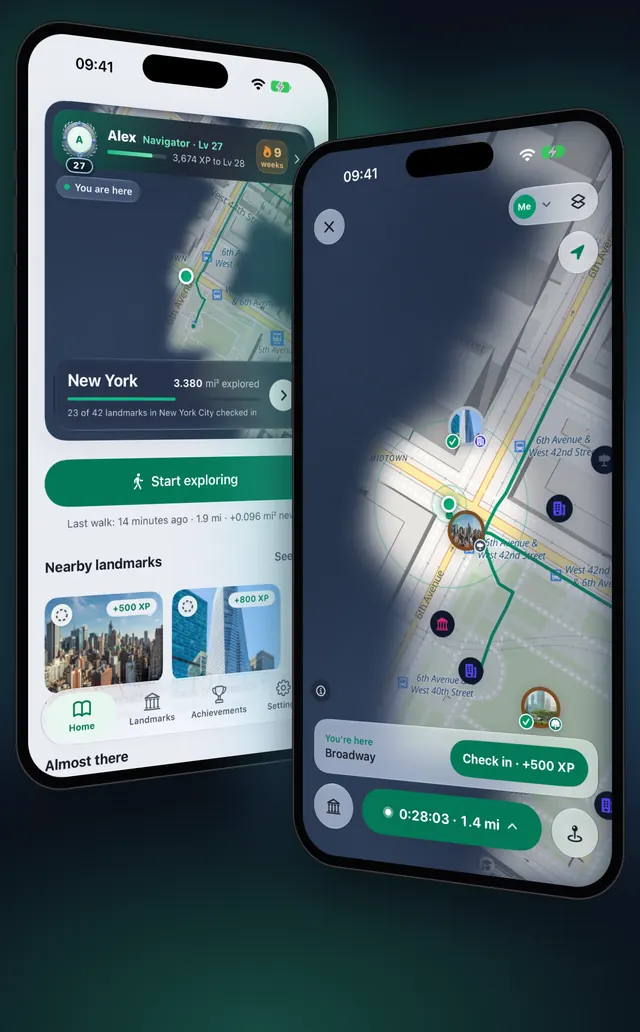
A fog-of-war map is an ordinary map covered in fog. Everywhere is hidden until you go there yourself. In OptiSafari the whole world starts under fog. As you walk, the fog lifts in a circle of 50 m around you, and the ground you have cleared stays on your map for good. Over weeks your own streets, neighbourhoods and trips fill in, and wards, provinces and countries open as you go.
There is no account and nothing to type. You start a walk, move, and the map does the rest. Your explored map stays on your devices, with a backup in your own iCloud that you can turn off, unless you share it.
What clears the fog, and what does not
Only a walk records, and only positions accurate to 50 m, at under 130 km/h, open the fog. Every rule, and what to do when the fog stays, is in Fog not clearing? Fix your walk map.
New ground earns XP by how fast you were moving when you opened it:
| Speed | XP per km² of new ground |
|---|---|
| Up to 10 km/h (walking, jogging) | 200 |
| 10 to 20 km/h (cycling) | 100 |
| Above 20 km/h | 40 |
You also earn 10 XP per km walked, run or cycled under 20 km/h, up to 50 km (500 XP) a day. A ward opens once you have explored 5% of it (at least 0.05 km² and at most 0.5 km²), and a province opens when 3 of its wards are open.
Start your first walk, step by step
- Open OptiSafari. The first time, follow the short profile steps; you land on the Home tab with your map card.
- Tap Start exploring under the map card.
- The first time only, tap Allow location and allow location in the iPhone's own prompt. Choose the option that keeps location on while you use the app.
- The map opens and the walk begins. Walk: the fog lifts around your marker, and the green capsule at the bottom shows your time and distance.
- Lock the phone and put it in your pocket. The walk keeps recording with the screen off, and iOS shows its location indicator while it does.
- To take a break, tap the green capsule, then tap Pause. Tap the capsule again and choose Resume when you are ready.
- To finish, tap the capsule and tap End walk, then tap End walk again at End this walk?.
- Read your summary under Walk saved: time, distance, new area, wards, landmarks and where the XP came from. Tap Done; the walk is kept (Saved to your walks).
While a walk runs, a strip at the top of every tab shows Exploring with the time and distance. Tap it to jump back to the map.
Tips for a clean map
- Give the GPS a moment. If the map says Waiting for GPS… or Weak GPS · not recording, stay in the open for a few seconds. Nothing is lost; recording starts as soon as the signal is good.
- Check in as you pass landmarks. See Check in at landmarks for how close you need to be.
- Leave the phone in your pocket. With an Apple Watch you can record on your wrist and check in from it: Record a walk on Apple Watch.
- Travelling? Download the country first so landmarks and street maps work without a signal: Walk offline with city maps.
- Look at the Settings first if nothing clears. In Settings, the Location row should say it is allowed.

OptiSafari — Places Visited, Travel Tracker
Free · No account · Works offline
Frequently asked questions
Does the fog clear when I am not on a walk?
No. Nothing is recorded outside a walk. Tap Start exploring (or Start on the map) before you set off, and tap End walk when you finish.
What happens if the app closes during a walk?
The walk is restored the next time you open OptiSafari. A sheet titled Your walk is still going shows the time and distance so far and lets you choose Continue or End walk.
Do car, bus and train trips clear the fog?
Anything under 130 km/h opens fog, whatever carries you, but new ground by vehicle earns less XP, and a ward opened mostly by vehicle gives half its XP. Above 130 km/h, on a plane or a fast train, the fog does not open at all.
Why is the fog not clearing?
Check three things: the Location row in Settings says it is allowed, the strip at the top shows Exploring rather than Paused, and the map is not showing Weak GPS · not recording or Moving too fast · not recording.
Can I start over?
Yes. In Settings, open Your data and tap Reset explored area. The ground you explored goes back under the fog; walks, places, check-ins and medals stay. The app asks before it does it.
What can OptiSafari not do?
It cannot clear fog for places you have not walked, and it does not record your location between walks. Street maps load from the internet unless you download a city map, and it does not save anything to Apple Health.