iPhone Duo
OptiSafari on iPhone Duo: what changes when you unfold it
Hold the unfolded iPhone Duo sideways and OptiSafari spreads out into two columns, with the walk map on the whole screen. Upright or folded, you get the layout you know from iPhone.
Updated November 17, 2026 · Free on the App Store · iPhone and Apple Watch, iOS 17+
Why use OptiSafari unfolded
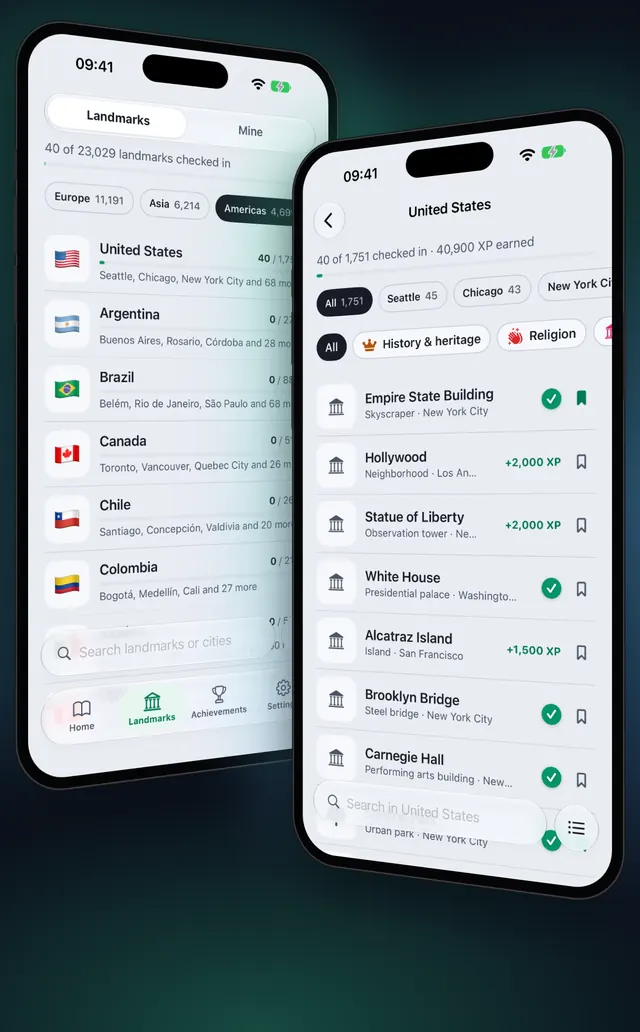
On a walk the phone is folded in your pocket. At home, planning the next walk or looking back at the last one, the big inner screen shows more at once: the list of countries beside a country's landmarks, or your medal sections beside the medals.
OptiSafari chooses its layout by how you hold the Duo:
| How you hold it | Layout |
|---|---|
| Unfolded and sideways | Two columns, and a full-screen walk map |
| Unfolded and upright | The iPhone layout, with one tab bar |
| Folded (outer screen) | The iPhone layout, upright only |
The app turns sideways only on the unfolded inner screen.
What you see unfolded and sideways
| Tab | Left column | Right column |
|---|---|---|
| Home | Your map card, with Start exploring and your last walk under it | Nearby landmarks, the medals Almost there, Wards near you and Saved places near you, as lists |
| Landmarks | Countries | The country page you picked |
| Achievements | The medal sections | The section you picked, with its medals |
| Settings | The groups of settings | The rows of the group you picked |
On Home, a place you tap opens a quick look in its column. In Landmarks, a landmark opens its full page over both columns, laid out in two columns. The tabs sit in the bar iOS shows along the trailing edge.
Walk with the map on the big screen, step by step
- Unfold the Duo and hold it sideways.
- On Home, tap Start exploring. The map opens on the whole screen, with no sheets over it.
- Use the buttons in the system bar on the trailing edge: Close map, My map, Choose a map, Map layers and Go to my location. During a walk it also shows where the walk is recorded: Recording on iPhone or Recording on Apple Watch.
- Tap Places around you, the building button at the bottom of the map. The places panel opens from the leading edge.
- Tap a place in the panel. Its quick look shows whether it is Checked in or Discovered, with Save and View details.
- Tap View details to open the place's full page.
- Tap Map layers or Choose a map. They open as a side panel from the trailing edge, and the map stays in view.
- Fold the Duo and put it in your pocket when you set off. The walk keeps recording, and the app returns to the iPhone layout.
Tips
- Two columns need sideways. Upright, the unfolded Duo shows the iPhone layout on purpose, so turn it to get the columns.
- Plan on the inner screen. In Landmarks, pick a country on the left and sort its page by Not visited first on the right: A map of the places you have been.
- Everything else is the same. The fog, check-in and Apple Watch work as on any iPhone: How a fog-of-war walking map works.

OptiSafari — Places Visited, Travel Tracker
Free · No account · Works offline
Frequently asked questions
Does OptiSafari work on iPhone Duo?
Yes. Folded, and unfolded upright, it shows the iPhone layout. Unfolded and held sideways, it shows two columns.
Why do I not see two columns?
Two columns appear only when the Duo is unfolded and held sideways. Upright, the app keeps the iPhone layout, and on the folded outer screen it stays upright.
Where are the map buttons on the Duo?
Unfolded and sideways, they are in the system bar on the trailing edge. The places panel opens from the leading edge, and Map layers from the trailing edge.
Does folding the Duo stop my walk?
No. Folding, unfolding or turning the Duo does not stop a walk.
What does OptiSafari not change on the Duo?
The game is the same: the fog, the check-in rules, XP and medals work as on any iPhone. Only the layout changes, and only unfolded and sideways.